Adding & Editing Web Pages
Adding a New Page
Within the Site Map you can select "Add a new page". Fields marked with a red asterisk must be completed.

META Information
By default, the META Information section is collapsed to save space . Click on the META Information title to reveal the META Keywords, META Description and META Robots.
- META Keywords are a comma separated list of words that best describe your website and the specific content on that web page. META Keywords are not used by the major search engines and offer very little benefit. Generally speaking, you do not have to add any keywords unless you're looking to appeal to all search engines, not just the main ones.
- META Description is a short body of text that should give an accurate synopsis about the web page's overall content. Be sure to use specific keywords as search engines use the META description for ranking purposes. The META Description should be unique for every page of your website.
- META Robots if you do not wish for a particular page to be indexed by a search engine you could add the following to the META Robots section: NOINDEX,NOFOLLOW. Otherwise, there is no reason to modify this information.
The META Keywords, META Description and META Robots will be inherited from your home page's values unless otherwise specifically changed. So, if you add META Keywords to your home page but don't modify them on another web page that page will have the same META Keywords as your home page.
Web Page Information
- Page Title* is the headline of the web page and it will appear at the top of the page's content.
- Page Name* the name of the url.
Example: http://www.yourwebsite.com/page_name/
You can add a few key words into the URL name. For example, instead of writing a page name that reads "/testimonials/", the page can read "/testimonials_success_stories_chicago_web_design/". - Redirect URL if you would like a new link to appear in the navigation but when selected go to another section or website complete this field.
- Page Layout by default "Main Nav at the Top - Sub Nav on the Left" is the correct selection.
- This page is a child of... select the appropriate section where you would like your new page to exist.
Example: If you would like your "Test Page" to be under "Visit" select "Visit". - ...and it is located... once you have selected the "child", the appropriate pages will be automatically placed in the dropdown menu
Example: If you would like the Test Page to appear below: E-News Sign Up then select E-News Sign Up. - Add text to this new Web Page check this box if you would like to add content to your page.
- Set this page under construction if you would like to continue to work on this page but not allow it to appear in the navigation click on the checkbox.
Editing the Page Properties
There are two ways you can edit the Page Properties of your website.
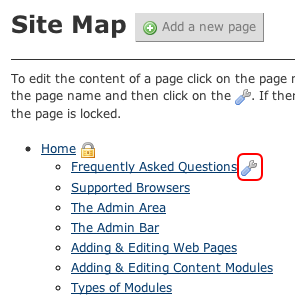
Within the Site Map you may click on the wrench icon next to a page to edit its title and/or relationship within the navigation.
You may also click on the Edit Page button in the Admin Bar at the top of each individual web page.
At the top of every web page is the Admin Bar. This transparent bar runs across the entire width of the website and is always at the top of the page even when you scroll up and down.

To activate the admin bar, simply hover your mouse over it and it will become completely opaque.
Editing Content on a Page
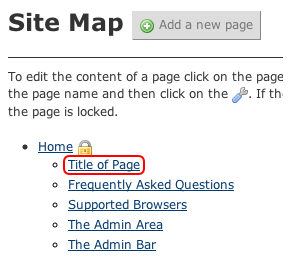
There are two ways you can edit the content on your website pages. Within the Site Map you may click on the page name to edit the content of that page.
- Pages may be composed of several “Modules”.
- Most pages will be comprised of “Text Modules".
You may also click on View Public Website link to go to your home page. From here you can navigate to any page on your website to make any changes.