Email Support
Aliases
An email alias looks just like an email address, but actually represents an alternative name of the original name of a mailbox. It is a forwarding email address, allowing for an email to be addressed to one mailbox but to be redirected to another mailbox or multiple mailboxes. In other words, if someone sends an email to the address info@yourdomain.com, which is actually an email alias of yourname@yourdomain.com, the mail server set at yourdomain.com will forward the incoming email message to the parent mailbox (yourname@yourdomain.com). Typical aliases might be: support@ orders@ info@
POP vs IMAP
POP (Post Office Protocol) and IMAP (Internet Message Access Protocol) are both means to retreive emails from a remote email server. Which one you use depends on what you need to be able to do with your email. The primary differences between POP and IMAP involve what you can do on the email server.
POP was designed with dial-up connections in mind. You can log on to your email, download all of your messages to your computer and then disconnect. The advantage is that you don't have to stay online to read or organize your emails. By default POP is set to delete messages from the server when you copy them to your computer, although there is an option to leave a copy on the server. Unless you select this option, you can only view your emails from one location. However, deleting messages from the server means that your email storage is not limited by the email server's storage limits. This means that you can save as many emails as your personal computer can hold. The only folder on your email server when using POP is the Inbox. You can't create other folders for sorting emails on the server, only on your local computer, so these folders can only be accessed on that computer. In essence, the control center for working with your emails when using POP is your computer not the email server. The bottom line is that you should use POP for any email account that you access from only one computer or any account that might exceed your email server's storage limits.
IMAP was designed as an alternative to POP. Instead of downloading messages to your computer, emails are saved on the server and you see only the header of the message on your computer. This allows you to access the same emails from different locations. You can also create different folders on the email server, allowing you to organize your emails on the server, then access those folders from multiple locations. Because your messages are stored on the email server and not your personal computer, you do have to manage your storage space. When your email server/account gets full, incoming emails will be returned to the sender. You can download and delete messages from the server (like with POP), but the process is not as straightforward. The control center for working with your emails when using IMAP is the email server, not any one computer. The bottom line is that you should use IMAP for any email account that you access from multiple computers.
Email Setup Instructions
1. Webmail
Go to the secure login portal with at https://apps.rackspace.com/.
2. Changing Your Password
To change your password go to your webmail server at: https://apps.rackspace.com/
- Log in using your email address and temporary password.
- Click on the "Settings" link in the upper right corner.
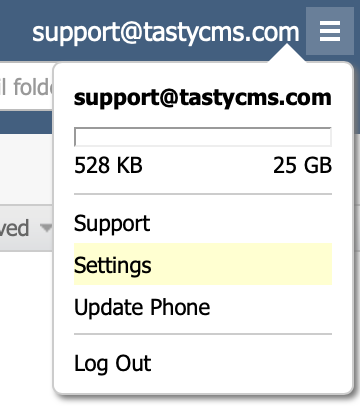
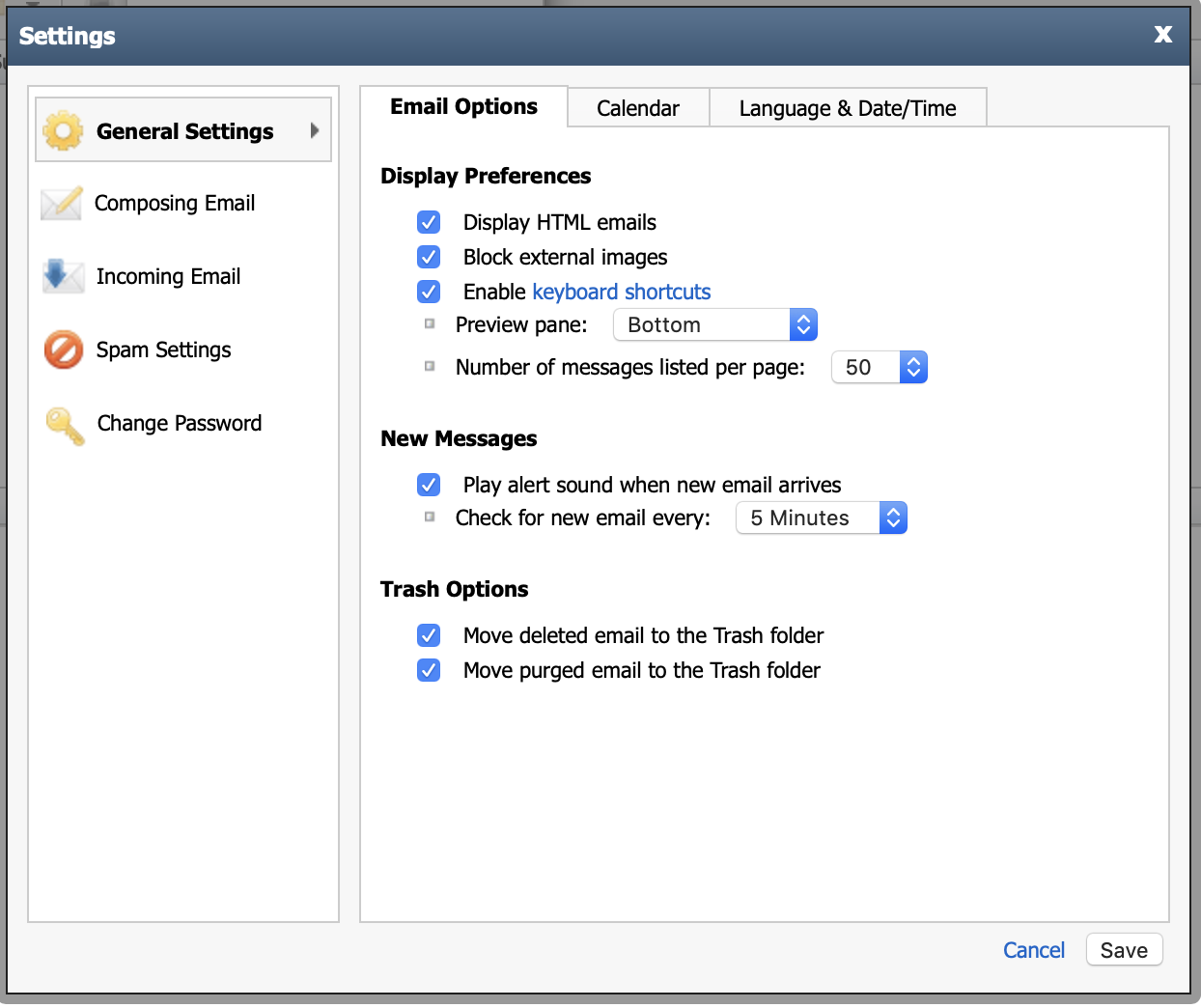
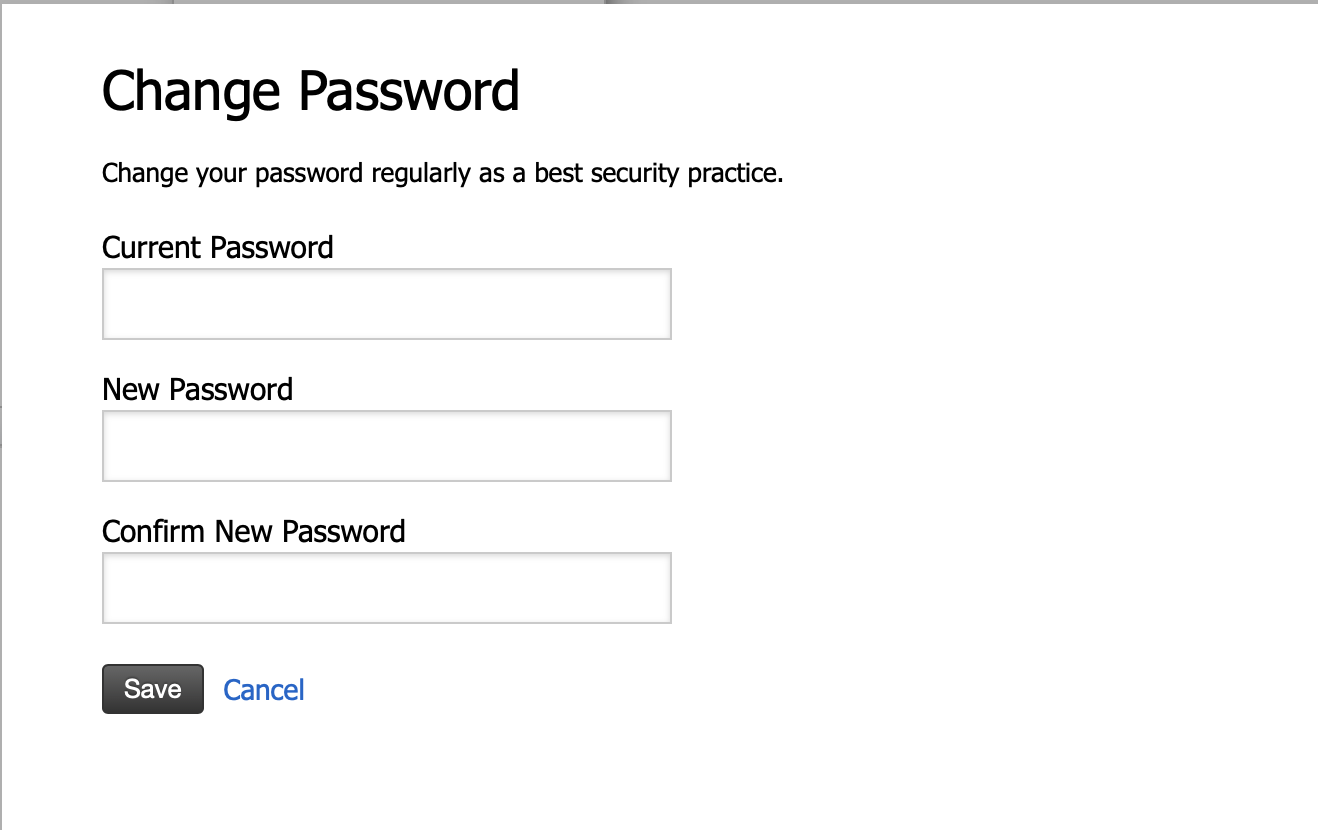
- Click on the "Change Password" menu in the left hand site and complete the instructions.
3. Setup Gmail to send email as @yourdomainname.com
Forward your email to a Gmail account and then setup Gmail so that it looks as if messages are being sent from your domain.
Follow the steps below:
- Sign in to Gmail.
- Click the gear icon in the upper-right, select Settings and select the Accounts and Import tab (or Accounts tab, if you're using Google Apps).
- Under Send mail as, click Add another email address.
- In the 'Email address' field, enter your name and alternate email address.
- Use your other email provider's SMTP servers (we recommend this option for professional mail accounts or domains). Note for Google Apps users: Depending on your domain2 type, this feature may be disabled by default. Talk to your administrator if you have any questions.
- Enter the SMTP server (secure.emailsrvr.com), your username on that domain (your email address), and your password for that account. You may also need to adjust your port setting (465).
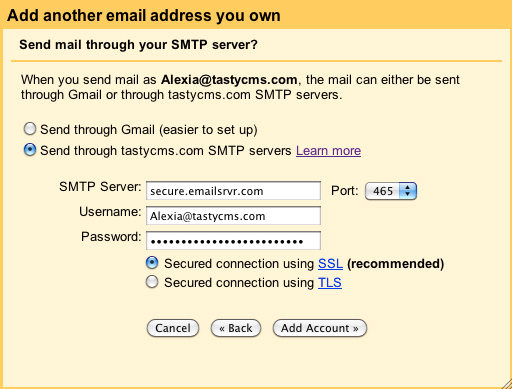
- Click Add account.
(Google Gmail source) -
The email confirmation code will automatically forward to your Gmail account since we should have set up your email addresses to forward to your Gmail Account.
Or, use Google Apps Standard Edition (Free)
Configuring your email client
Email Server Settings
*Tasty CMS Cheat Sheet Settings
POP
Incoming Server Type: POP3 with SSL
Server Name: secure.emailsrvr.com
Port: 995
Outgoing Server Type: SMTP with SSL
Server Name: secure.emailsrvr.com
Port: 465
IMAP
Incoming Server Type: IMAP with SSL
Server Name: secure.emailsrvr.com
Port: 993
Outgoing Server Type: SMTP with SSL
Server Name: secure.emailsrvr.com
Port: 465
*Please verify the settings from Rackspace in any of the above 3 links listed above.
Spam Email
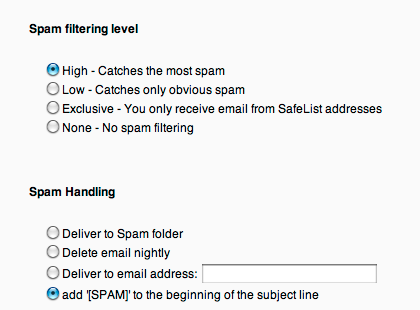
Rackspace can handle spam but certainly not as well as Google does (we use Gmail). Your email programs will have to learn which messages are spam and which are not and this will take some time.
To edit spam filtering settings for your email webmail account (webmail.yourdomainname.com), please see the second item under "Editing Spam Filtering for an Email Account".
And to be clear, the default settings on our end for setting domain wide Spam catching is automatically set to High so we're doing everything that we can on our end to mitigate the spam you receive.