Adding & Editing Content Modules
Content modules are unique blocks of content that you can add to any page of your website. Each type of module offers the ability to add specific content to a page in a consistent way. For example, if you wanted to add text to a page select the Text Module; if you wanted to embed a YouTube video select the Video Module. You can add an unlimited number of modules to a page and you can rearrange modules by dragging them up and down on a page.
Adding a Module
To add a module to a page go to that page and at the top of the page you'll see the faint outline of the Admin Bar. To activate the admin bar, simply hover your mouse over it and it will become completely opaque.

When you click on "Select a Module to Add", a drop down menu appears. Select the module you want to add to the page. If you want the module to be added to the top of the page click on the button "Add at Top". If you want the module to be added to the bottom of the page click on "Add at Bottom".
An empty module will then appear on the page which you can then edit and add your content.
Editing a Module
All modules can be edited the same way. First, hover over the top area of a module on a particular page. A yellow bar accross the content area will appear. On the left hand side, click on the pencil paper icon to edit a module.

Moving Modules on the Same Page
You might need to move a module from the bottom of your page to the top of the page.
- Rollover the module you want to move. A yellow bar will appear.
- Click and hold your mouse button on the yellow bar.
- Move the module in the appropriate direction.
- When you drag a module up and down on a page a highlight box will be shown so you can see where the module is moving.
Moving Modules to a Different Page
You might want to move a module to another page entirely.
- To move a module to another page, rollover the module. A yellow bar will appear.
- Select the “Edit” icon (paper and pencil).
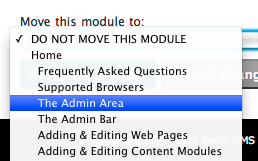
- On the bottom of the page click on the dropdown menu below “Move this module to:”.
- Select the Page you want to move the module to.
- Click "Save this content".